Downloading data from Gmail in bulk can be a time-consuming task in various scenarios for SMEs (Small and Medium-sized Enterprises) and Freelancers. Here are some specific scenarios where the script can be beneficial:
- Download invoices over the last year to share with an accountant.
- Various files received from a client over some time.
- Create Backup files to clean up your inbox.
The below script takes less than 5 minutes to setup, and can save you hours of work.
- Create a new Google Sheets document — Go to your Google Drive account. Click on the “+ New” button and select “Google Sheets” to create a new Google Sheets document.
- Open the Apps Script editor — In the Google Sheets document, click on “Extensions” in the top menu and select “Apps Script”.
- Write the Apps Script code – In the Apps Script editor, replace the default code with the following code:
- Save & Run the script — In the Google Sheets document, go to “Add-ons” in the top menu and select “Gmail Attachments Downloader”. Grant the necessary permissions for the script to access your Gmail and Google Drive.
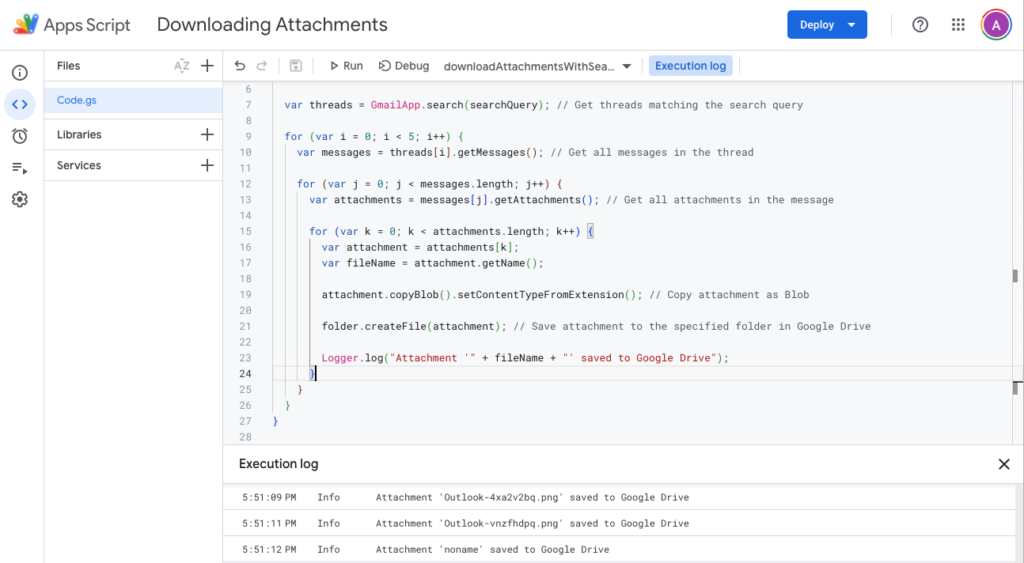
The script will start running and iterate through all the threads in your Gmail inbox, downloading any attachments found. The attachments will be saved in a folder named “Attachments” in your Google Drive. You can view the progress and any error messages in the “Logs” section of the Apps Script editor.
Looking for help to set up a more complex automation? Get in touch with the SimplifyS team.